HOW TO SETUP GOOGLE TVA Story by Silencer Version 1.11 - 5/1/25.
HOW TO SETUP GOOGLE TV.
Google TV Website:
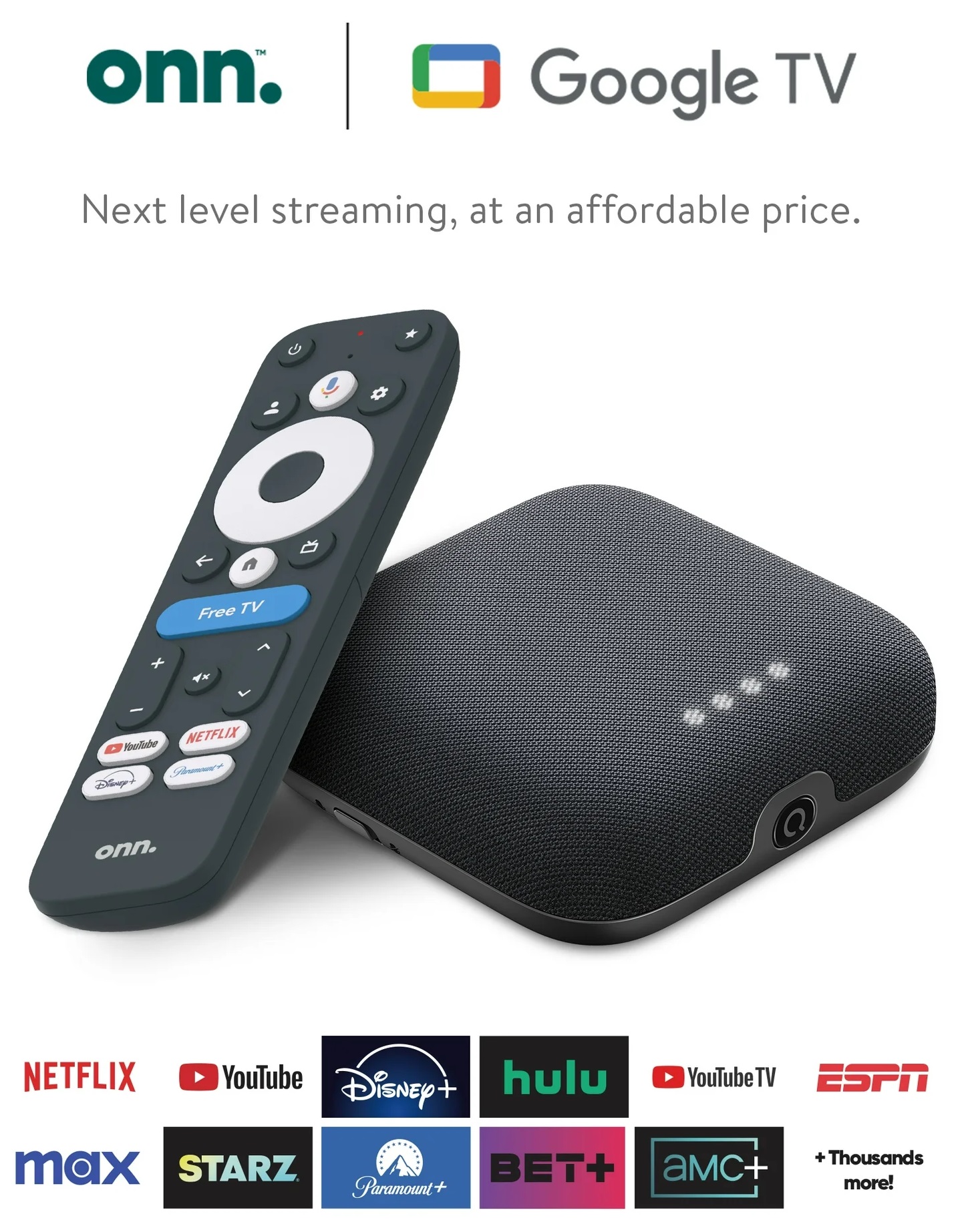
Recommended - [HARDWARE] - onn. Google TV 4K Pro Streaming Device (New, 2024), 4K UHD resolution, Dolby Vision & Dolby ATMOS, Hands-Free Voice Control, Smart Hub - Walmart.com
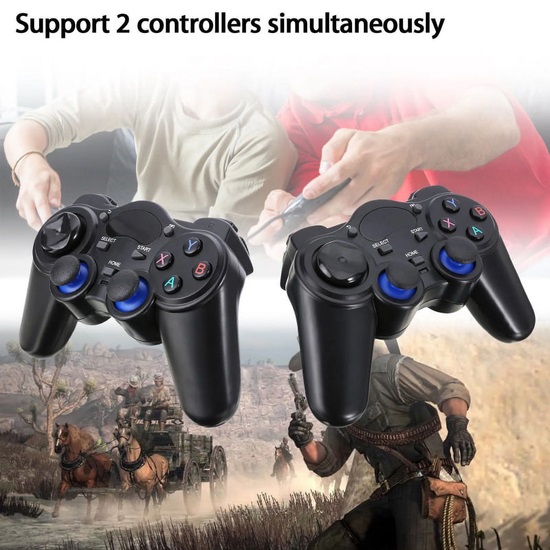
[Gamepads] - 2.4G Wireless Game Controller, Black Gaming Gamepad Joystick for PC Windows 11 10 8 7 Steam, PS3, Android Phone Tablet TV, Laptop Notebook Computer - Walmart.com
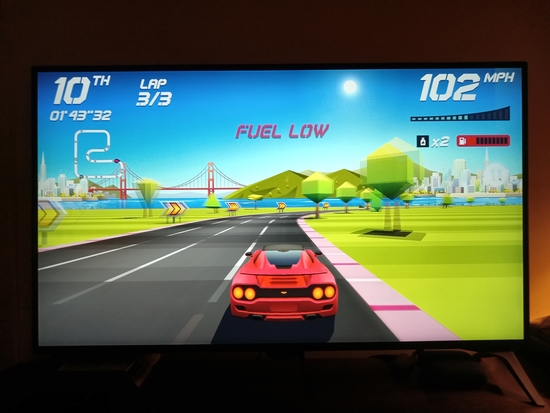
Horizon Chase - Arcade Racing - Actually a "Remote Control" input game. I think gamepads work with it too though...
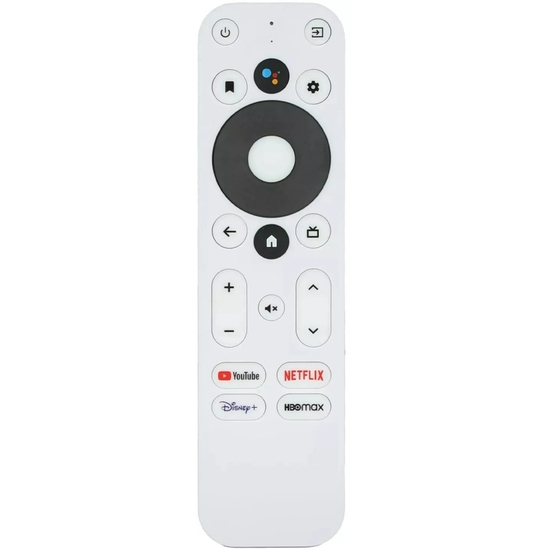
[Extra Remotes] - New For ONN Android TV 4K UHD Streaming Voice Remote Control 100026240 100024646 - Walmart.com
Google TV
**** SETUP:
(Brand-new, or Factory Reset:) Use the phone app to setup when prompted.
On your phone, go to the Google Play Store, and search for and install the "Google Home" app.
Also install the "Google TV" app, for better Keyboard input, (using your phone.) (USB also works.)
Disable Screensaver: Settings > Apps > See all apps > Show system apps > Ambient Mode > Disable > OK.
Turn off Sleep Mode 1: Settings > System > Power & Energy > Never.
Required: Settings > System > About > Android TV OS build, and click it until it says you're a developer.
Turn off Sleep Mode 2: System > Developer options > Stay awake > On.
Turn off "Hey Google": Hit your Settings button > Switch account > Manage accounts > Google Assistant > Hands-free Mic > Off. (You can still use the button.)
Permissions:
(As a HABIT:) Under Settings > Apps, you need to enable full "Permissions", for everything you install.
* When installing apps, ANYTIME you are asked to setup Permissions, *always* do so. (Or they won't work.)
ALSO: Anytime an App doesn't work, *first* make sure that its Permissions are on.
Long-press:
In addition to 'Press" and 'Double-press', 'Long-press', is a *new way of clicking*, in Android apps.
When in doubt about how to do something, (modify a file, select an option,) try a 'long-press'.
**** Uninstall:
Settings > Apps > See all apps > (select app) > (Force stop > OK) > Uninstall (or Disable) > OK.
Disney+ Hulu Netflix Paramount+ YouTube Music YouTube TV
Leaves Installed:
Prime Video Freeplay Tubi YouTube
**** Install these Free TV Apps, Apps, and Games as desired:
See the "Android - [SOFTWARE]" folder.
+ Super Bookmarks - [DOWNLOAD]:
(Sorry, but a 'Free MeWe Signup' is required, to access my DOWNLOAD page.)
https://mewe.com/silencer.34/posts
From "+ Super Bookmarks_4_30_25", "Android - [SOFTWARE]":
- Google TV Apps - [SOFTWARE]
HOW TO SETUP GOOGLE TV [Free TV Stream Apps] PlutoTV: Live TV & Free Movies The Roku Channel Kick: Live Streaming Plex: Stream Movies & TV Sling: Live TV + Freestream DIRECTV STARZ Zeam [Music] - Spotify: Music and Podcasts Twitch: Live Streaming The CW Crackle Popcornflix™ - Movies & TV NFL
[External Drive Mounting] Re-Format your Drive, with 'exFAT'. Backup your Data, and use Disk Management. After copying your Data back, plug it in. (Or...)
[NTFS Support] - (Poorly Implemented.) NTFS Drives may need a (USB 3.0) 'PD 100W' hub. 5-In-1 USB Docking Station USB Hub PD 100W 4K 30Hz USB 3.0 USB2.0 USB C HUB Splitter for PC Laptop Computer USB Hub - Walmart.com [Mount NTFS Drives - 1/2] - MLUSB Mounter - File Manager [Mount NTFS Drives - 2/2] - MLUSB Mounter NTFS Write
[Access Windows folders] - NOVA Video Player - [1) Setup ALL under "Manage advanced sharing settings", 2) "Share" your folder, with Everyone.] File Manager + [1/2] - LocalSend: Transfer Files [2/2] - [Windows EXE] - LocalSend - Downloads Button Mapper: Remap your keys - [Use long-press to assign.] [Website App] - Home Screen Shortcut Maker for Android Apps - (The 'command', is shown in Settings > Apps.) - Generator for ATV-Launcher Apps
Google TV Browsers Opera - [Needs Shortcut Made, com.opera.browser] - (Click 'Download the app here', under 'GET IT ON Google Play'.) | Faster, Safer, Smarter | Opera #2- TV Bro - 'Impressive' 'Big-dot' Remote Mouse Pointer. Clean looking, Starts you in Dark Mode, Different. Worth a look. #3- BROWSER - 'Excellent' 'Arrow' Remote Mouse Pointer, *and has an optional Phone App for Control*. - (Stupid, annoying pop-up, first-run only.) #4- BrowseHere - 'Excellent' 'Circular' Remote Mouse Pointer, very-clean looking. - (Small pop-up, first-run only.) #5- Silk Browser - [Needs Shortcut Made, com.amazon.cloud9] - 'Nice' 'Circular' 'R.M.P.', launches Bing, Amazon's. - (A few annoying Amazon pop-ups.)
[Mostly Unneeded] [Android Command Prompt] - (USB Debug> ON.) (Small) - [SIMPLE Android Debug Bridge] - adbLink (Medium) - [Android SDK Platform Tools ONLY] - Download Latest Android SDK Platform Tools (Win/Mac/Linux) (Large) - [FULL Android Studio] - Download Android Studio & App Tools - Android Developers
Plex Media Server - [See 'NOVA' instead.] Plex: Stream Movies & TV - [Uses unwanted Metadata. See 'NOVA' instead.] Plex Media Server - Downloads | Plex Media Server for Windows, Mac, Linux, FreeBSD and More Plex - Desktop
Downloader by AFTVnews [Download Link] - Mouse Toggle - Android TV/Google TV [For streaming Video from a Phone or Tablet to a Google device.] - Chromecast - ChromecastSetup
- Google TV (Remote Control) Games - [SOFTWARE] Bloxorz - Block And Hole Orbia Cosmo Run Mars: Mars Horizon Chase - Arcade Racing BADLAND Jump Drive: Get Away Sky Force Anniversary Beach Buggy Racing Does not Commute
- Google TV (Gamepad) Games - [SOFTWARE] PAC-MAN 256 - Endless Maze BombSquad Sword Of Xolan Oceanhorn ™ Subdivision Infinity
[For a brief time I included a sideloaded app called "Volume Booster". It was the best out of several I tested, but when uninstalled, left Google TV's sound messed-up. If you installed that app, a (Settings > System > About >) "Factory Reset" is needed to fix your sound correctly. Sorry about any inconvenience.]
/ - App Notes:
**** 'File Managers' are for deleting unneeded .apk files after using them to install the apps, to free-up space.
"File Manager +", can also be used to share a drive connected to the Google TV, with Windows:
Click "Access from network" > "START SERVICE", and then in Windows open "Computer", and enter the information.
**** "Button Mapper" - To re-assign the 4 'pre-assigned Remote buttons', to other functions:
- Important: Use a 'long-press', to assign the pre-assigned buttons.
- "Screenshot", is one of the available options in Button Mapper.
(Note: This Screenshot feature is not capturing "VIDEO STREAM OVERLAYS". Working on it...)
(On that note, Tip: The number of assignable actions to buttons, is tremendous. Look through them all once!)
**** "Mouse Toggle" - An App that gives you "Mouse" control, using the "Remote Control". (USB also works.)
To assign "Mouse Toggle" to one of the pre-assigned buttons after installing "Button Mapper":
Add the button in "Button Mapper", and "Customize" it, but don't assign anything to it.
Then add the button normally in "Mouse Toggle".
/
**** Other ways to Install Android Apps:
1) On your Google TV, go to Apps > Search.
Type the name in, if the speech recognition isn't typing it correctly.
2) On your computer, go to Google Play > Google TV Apps:
https://play.google.com/store/games?device=tv
(You install these apps, using the webpage.)
3) All other Android apps, including Google Android "Phone", and "Microsoft Store" apps, can be "sideloaded":
(App installers, (like ".exe" files,) are called ".apk" files, on the Android OS.)
[Note: Our 'Architecture' is: "arm64-v8a". (Quad-core Cortex A55 CPU, ARMv8.2-A 64-bit.)
When downloading apk's, an "arm64-v8a" apk didn't work, while an "armeabi-v7a" apk did.]
Note 2: Sometimes when you install sideloaded apps they will appear to have been installed fine,
and then when you go to look for them, they aren't listed anywhere, in the whole Apps list.
So what that means, is sometimes apps will appear to have been installed, but actually weren't.
Bear that in mind if you go looking for an app, and can't find it anywhere. (It didn't install.)
/
**** 'Website App', that makes 'Home Screen Shortcuts', for 'Sideloaded' apps: (Link is in the Bookmarks.)
Android TV / Fire OS App Launcher Builder - No install, on your computer go to:
https://atvlauncher.trekgonewild.de/index.php
Fill-out the top 4 empty fields:
App Name (max 15 characters): App Package (e.g. com.android.application): App Logo (PNG only): App Banner (PNG/JPEG, optional):
- "App Package", is found under the App's information, in "Settings > Apps". Opera's is: com.opera.browser
- You can grab images, from "Bing.com" > "Images", and then use "Paint", to save them as ".PNG" files.
Hit "Generate APK", and then "Download APK".
Transfer the downloaded file to the Google TV device, by using "LocalSend", and Install it.
Then you have a shortcut for your sideloaded app!
/
**** Mouse & Keyboard & Gamepads Notes:
If you plan to connect more than one USB device, you'll need a USB 3.0 hub. Any will work.
(Note: Using a single, Logitech Unifying (USB) Receiver, for both the Mouse and Keyboard, also works.)
USB DEBUGGING MUST BE OFF. (It has to be ON, for Command Prompt Access. When done, turn it back off.)
No CURRENT, Google TV Settings, or Android Apps, allow re-assigning the right mouse button. (To Back, would be ideal.)
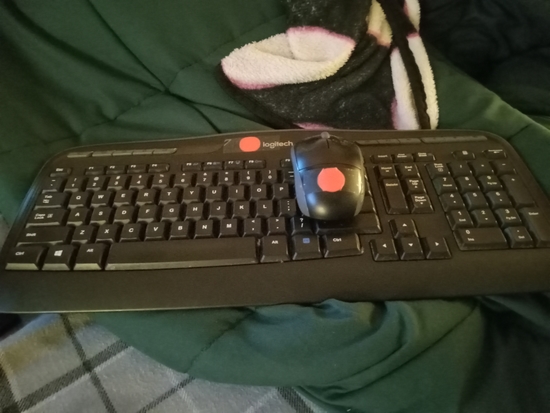
I used taped-on orange dot stickers, to differentiate them from my PC ones.
Plug in a mouse, and that's what you get. It's better, but ruined, because the right mouse button isn't Back, and there's no CURRENT Google TV Setting or Android App, that fixes it.
**** **** NOVA VIDEO PLAYER **** ****
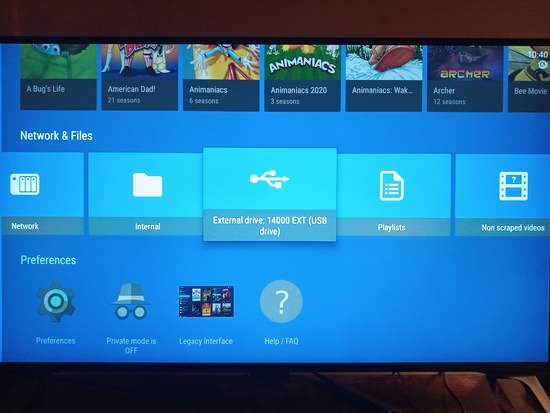
Plugged-in "exFAT" drives, pop right-up in Nova.
**** External Drive Mounting:
"exFAT" formatted external drives can be easily connected and used.
** And you can skip, the below "To share Windows folders..." steps 1 & 2. **
Re-Format your Drive, with "exFAT".
Backup your Data, and use Disk Management.
After copying your Data back, plug it in. (Or...)
["NTFS" Support is VERY Poorly Implemented. - NTFS Drives may need a (USB 3.0) 'PD 100W' hub. (About $8 at Wal-mart.)
To Mount NTFS Drives, install "MLUSB Mounter - File Manager" and "MLUSB Mounter NTFS Write" from Google Play.
You can access your drive, but only through the MLUSB App, not system-wide. (Which is extremely impractical.)]
**** To share Windows folders (for Media like Videos) with Android TV devices:
[FOR DIRECTLY CONNECTED, (TO THE GOOGLE TV DEVICE,) "exFAT" FORMATTED EXTERNAL DRIVES, SKIP TO STEP 3.]
In Windows 10, for example: (Your settings may be slightly-different.)
Step 1 of 3: First, setup Windows Networking to share the folder:
"Search", (on Windows Taskbar, or in Start Menu,) for "Manage advanced sharing settings", and open that up.
- Under "Private", Under "Network discovery" Choose "Turn on network discovery", Check "Turn on automatic setup of network connected devices". Under "File and printer sharing" Choose "Turn on file and printer sharing" Click "Save Changes". - Under "Guest or Public", Under "Network discovery" Choose "Turn on network discovery" Click "Turn on file and printer sharing" Click "Save Changes". - Under "All Networks", Under "Public folder sharing" Choose "Turn OFF public folder sharing" Under "Media streaming" Click "choose media streaming options.." Choose "Turn on media streaming" (If it isn't already.) Here you see the wireless devices that can connect, your TV device should be listed there. Make sure the box is checked "Allowed" next to your TV device. Click "Ok". - Expand "All Networks" again, Under "File sharing connections" Choose "Use 128-bit encryption to help protect file sharing connections" Under "Password protected sharing" Choose "Turn off password protected sharing" Click "Save Changes".
Step 2 of 3: Second, share your (Videos) Folder in Windows:
- Right-click your folder to share > "Properties" > "Sharing" >
Share... > Click the DROP-DOWN ARROW > "Everyone" > "Share" > "Done" > "Close".
- Right-click your folder to share, again > "Properties" > "Sharing" >
"Advanced Sharing..." > "Permissions" > (Your login name) > "Full Control" > check "Allow" > "OK" > "OK" > "Close".
(If after connecting, the "MEDIA" folder stops being seen, first, try rebooting your computer and the Google TV.)
Step 3 of 3: Third, install the Android TV app "Nova Video Player". Use Apps > Search, (or the Bookmarks.)
Open Nova > Hit Allow twice.
Check these Preferences: Show all movie row Show all TV show row Show all animations row Hide subtitles by default Create remote thumbnails Process '.nfo' files
FOR CONNECTED exFAT EXTERNAL DRIVES:
They are automatically Indexed immediately when you first access them.
FOR NORMAL Windows folders:
In 'Network', the "+", adds the folder, that YOU'RE IN.
Go inside your MEDIA folder, hit the "+", and Index it.
If Nova Indexes unwanted folders, go into them, and remove them from the Index, by hitting the "-" icon.
Re-scanning (Scraping): (The Re-scan option in Nova Video Player, only partially works.)
You need to Re-scan, this way:
Hit Settings > Apps > Nova Video Player > Force Stop > Clear Data >
Open > Hit Allow twice > [go to "Check these Preferences:" above...]
/
Play All:
To have Nova play all of the shows in the series repeatedly, instead of one at a time:
After launching a show from the main screen, hit Up > Right to "Play Mode > Binge watching".
Or after launching a show from the folders, hit Up > Right to "Play Mode > Repeat folder".
Volume:
Boost Volume: After launching a show, hit Up > Right to "Audio tracks > Night Mode".
(There's also an extremely-distorted "Audio Boost" option. Better to raise your TV volume to 100, first.)
If a show loses audio sync, (and hitting "Back", then "RESUME", doesn't fix it,) re-launching Nova, will fix it. ("Settings" > "Apps" > "Force Stop" > "Open".)
Adding Icons:
Nova Video Player uses Kodi .nfo files for correcting artwork. (.nfo's and .jpg's.)
To make your own, for any videos that need them:
After Indexing, in Nova's "Preferences", you can "Export already scraped videos" (it's near the bottom,)
to see from the exported files, the naming and format, that Nova prefers. (They'll be with the video files.)
Simply copy a similar video's files, and then change everything, to match the file, that you're creating one for.
You can safely delete all exported scrape files. (All .nfo's and .jpg's.) (Exported, not your own!)
(And, All .xml files, (which are only used to hold video restart information.)) [Easy with UltraSearch.]
/
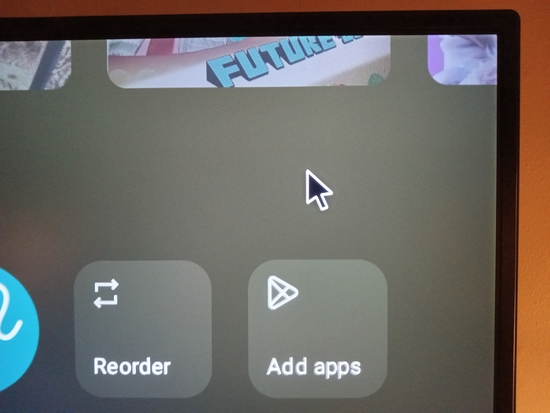
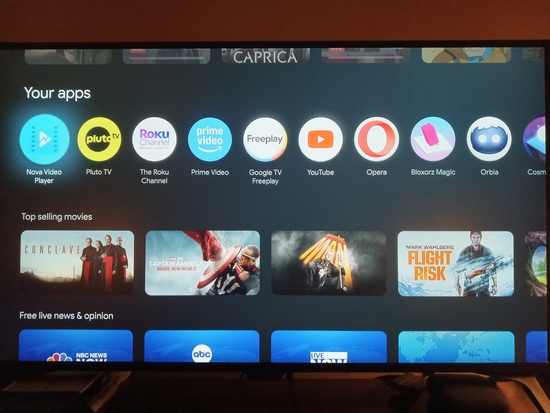
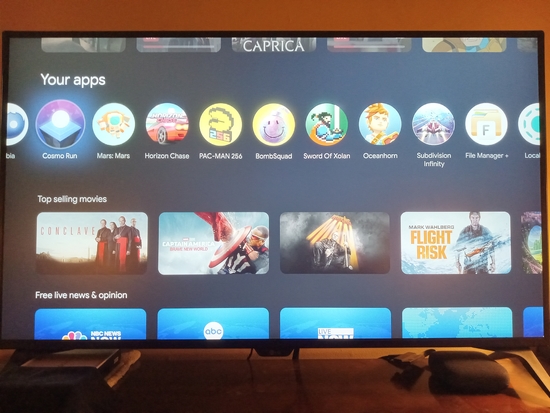
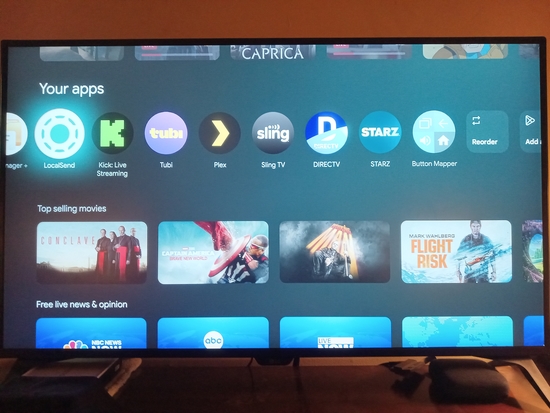
Put your Home Screen Shortcuts in order.
My current setup.
SETUP COMPLETE.
/
Enjoy your amazing TV device!
Thank-you for reading!
Please share this with others!
https://www.writerscafe.org/writing/Silencer/2939763/
/
Random pictures:
https://www.writerscafe.org/writing/Silencer/2939961/
/
+ Super Bookmarks
+ Super Bookmarks - Useful Websites, PC Apps, Games, TV/Movie Streams, links to Documents, More. + Super Bookmarks - [DOWNLOAD] - (Sorry, but a 'Free MeWe Signup' is required, to access my DOWNLOAD page.) + Super Bookmarks_5_24_25b - Short Demo + Super Bookmarks_3_23_25 - Demo
HOW TO SETUP GOOGLE TV
HOW TO SETUP GOOGLE TV Google TV Pictures - Nova Video Player - External exFAT Drive Indexing
Computer Stuff
How to Install and Setup Windows How to Be a Computer Expert in 30 Minutes. How to Setup Three Display Switching with Windows 10 64-bit. <7>Silencer - Best Scores! How to Win at First Person Shooters | EA Forums
/
© 2025 Silencer |
Stats
622 Views
Added on April 9, 2025 Last Updated on June 24, 2025 |
 Share This
 Email
Email Facebook
 Twitter
 Read Request
 My Library
 Subscribe
 Flag Writing